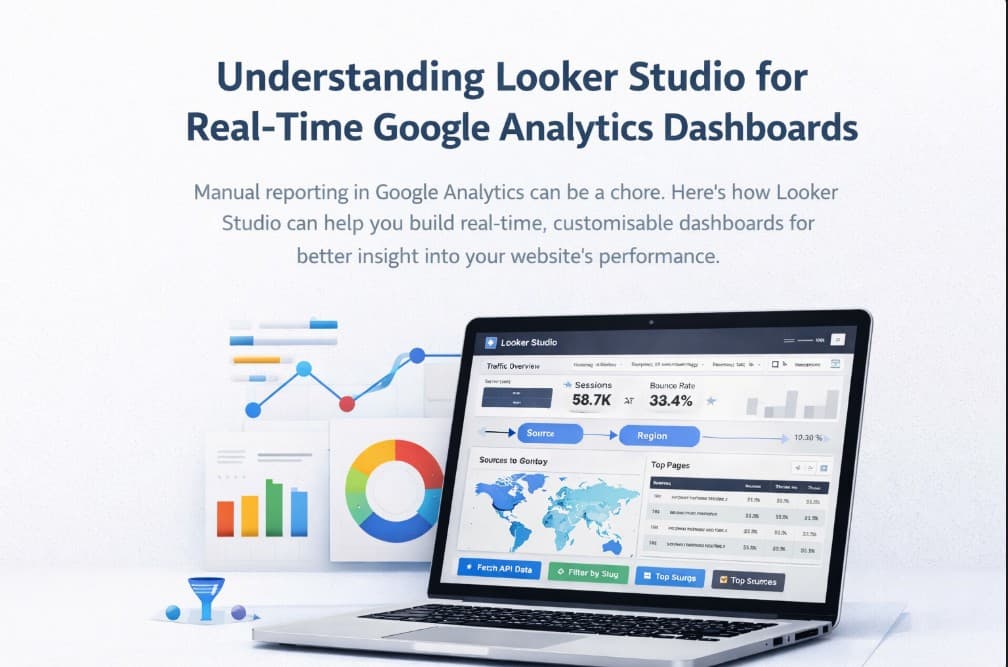
Google Looker Studio: Simplify Your Analytics and Content Reporting
Many early-stage founders and website owners struggle with daily analytics. Manually pulling reports from Google Analytics, taking screenshots, and emailing them is tedious and error-prone. What if you could build a live dashboard that updates automatically with just the data you need? Enter Google Looker Studio – a free, drag-and-drop reporting tool that turns your Google Analytics (and other data) into easy-to-read dashboards. Instead of grabbing the same GA reports each day, you can customize your view once and have it auto-update on any schedule.
Why Manual Reporting is a Pain
Getting insights from GA often means: log in → find the report → apply filters → screenshot → send. Repeat. For a content-heavy site (blogs, news, etc.), you might have hundreds of page URLs (e.g. /news/slug, /blog/slug, /category/blogs/slug). Grouping and filtering these in GA is clunky. For example, to segment traffic by article type or category, you’d have to manually set up segments or filters each time. And if you need to share these with teammates or clients, you do it again every day. It’s a slow, manual process that distracts from actually analyzing the data.
What is Looker Studio?
Looker Studio (formerly Google Data Studio) is a no-cost Google tool that makes dashboards easy to build and share. It has a visual, drag-and-drop report editor and dozens of chart types (line, bar, pie, geo maps, pivot tables, etc.). You can connect it to virtually any data source: Google Analytics 4, Google Search Console, Google Ads, YouTube, BigQuery, Google Sheets, and even social platforms like Facebook or Twitter. In practice, this means all your marketing and content data can live in one place.
- Real-time setup: Once you build the dashboard, Looker Studio automatically pulls data. You can enable auto-refresh (every 5–30 minutes, hourly, or daily) so the charts always show the latest numbers.
- Fully customizable: You control every element – titles, colors, charts, and filters – so it matches your needs and branding.
Because it’s a Google tool, Looker Studio works seamlessly with GA4. Even if you can’t or don’t want to use Google Tag Manager for content grouping, you can replicate those groupings inside Looker Studio. For example, you might group all “news” articles or “blog” posts together using a custom formula (more on that below).
Building Custom Dashboards
In Looker Studio, each report is a canvas of charts and tables. You add interactive controls (filters, date pickers, dropdowns) that let viewers slice the data on the fly. Key features include:
- Interactive Filters: You can insert dropdown lists or text-input fields tied to any dimension. For example, add a dropdown that filters by
Page Pathor a custom category. Viewers pick an option and the charts update instantly. - Date Range Controls: Place a date picker so anyone can select “Last 30 days” or “Year to Date” without editing the report.
- Drill-Down Tables: Enable drill-down on table charts to see hierarchical data (e.g. click a country to see its cities). This means you can start with “Source → Region” or “Region → Source” in one table and click through to the deeper level as needed.
- Clickable Links & Images: Embed hyperlinks or images (for example, link to a live product or video).
- Calculated Fields: Create your own metrics or dimensions with formulas (sums, ratios, regex extractions, etc.).
Thanks to these controls, your dashboard becomes a self-service tool. Rather than exporting CSVs or screenshots, your team opens one URL and everything they need is right there, up-to-date and interactive.
Handling Many URLs (Content Sites)
Content websites often have complex URL structures (e.g. /news/*, /blog/*, /category/news/*, etc.). In GA you might have to click through pages or use regex filters to see just “all blog posts” vs “all news”. In Looker Studio, you can create custom fields to group these paths automatically:
For instance, assume GA4’s Page path dimension gives you values like /news/article1, /blog/post2, etc. You could add a custom field with a CASE or REGEXP formula to tag each URL:
CASE
 WHEN REGEXP_MATCH(Page path, '(?i)^/news/') THEN "News Article"
 WHEN REGEXP_MATCH(Page path, '(?i)^/blog/') THEN "Blog Post"
 ELSE "Other"
END
This field categorizes pages without touching GA4 settings. You’d then use this custom category as a dimension in charts, or as a filter control. For example, dropdown filter by “News Article” vs “Blog Post”.
“We want to see traffic for all
/news/pages and all/blog/pages separately.”
– You create a custom field as above, then filter your sessions table on “Category = News Article”.
This approach scales: if you reorganize your site or add new sections, just update the CASE formula. You can even use complex regex (e.g. REGEXP_CONTAINS(Page Title, ".*pattern.*")) to bucket content. Looker Studio’s built-in formula functions (REGEXP_CONTAINS, REGEXP_MATCH, etc.) let you mine and transform GA string fields on the fly.
Examples of Interactive Filtering
- Drop-down list: Show a list of page categories or authors. Viewers select one and all charts update.
- Date-range slider: Have a slider to narrow time frames.
- Parameter control: (Advanced) You can define a parameter (e.g. text input) that users fill, and use it in a calculated field to dynamically filter by that input.
For example, if you give a text box where a user can type /blog/my-post, you can filter the report to only show that page’s data. This is harder to do in native GA but straightforward in Looker Studio with parameters.
Automating Refresh and Collaboration
You don’t have to manually rerun the dashboard each day. Looker Studio can auto-refresh its data (as of recent updates, including Looker Studio Pro) on a schedule. You pick intervals: every 5, 10, 15, 30 minutes; hourly; or once a day. That way your dashboard always reflects “fresh” data from GA4 without any clicks. (Note: GA4 API limits still apply – but auto-refresh will pull new data as soon as GA has it.)
Once the dashboard is set up:
- Share instantly: Just like Google Docs, you can share the report link with teammates or clients. They see live data but can’t break the report (unless given edit rights).
- Schedule email: You can email the report snapshot regularly to stakeholders. No more manually emailing Excel.
- Embed reports: Insert your live dashboard into an intranet page, Confluence, or a blog post. Anyone with the link (and permissions) sees the dashboard as if it’s part of your site.
- Collaborate in real-time: Multiple editors can tweak the dashboard together.
Sharing is much simpler than sharing GA accounts or sending CSV exports. Everyone stays on the same page (literally) with one source of truth.
Integrating Your Own Data or APIs
Beyond Google products, you can bring any web-accessible data into Looker Studio. Google’s Community Connectors let you write a quick Google Apps Script to fetch from your own API or database. For example, you could pull customer survey results, CRM data, or internal metrics and blend them with your GA data in the dashboard. Or use Google Sheets as an intermediate: have your backend push JSON to Sheets, then link that sheet in Looker Studio. In short, if it’s online, it can fuel your dashboard.
This flexibility means you’re not limited to GA. Want a button in the dashboard that shows how many support tickets came in today? Create a connector or sheet for that and add a chart. Need to filter by custom session variables? Push those via your own endpoint. Looker Studio becomes a unified reporting layer for any data you care about.
Setting It Up: Step-by-Step (Brief)
- Connect Google Analytics: In Looker Studio, choose Google Analytics as a data source and select your GA4 property.
- Add Charts: Drag in time series, tables, geo maps, etc. Use GA dimensions (like source, region, page path) and metrics (sessions, users, conversions).
- Define Filters/Controls: Insert a date range control, and add filter controls (e.g. drop-downs for source/medium or custom category fields).
- Create Custom Fields: In the data source editor, add calculated fields with CASE/REGEXP to group URLs or extract slugs. For example, a “Content Category” field from Page path.
- Enable Drill-Down (if needed): For any table chart, specify a hierarchy of dimensions (e.g. Country > City). Viewers can then click to drill.
- Style and Annotate: Label your charts, add notes or your logo, apply a color theme.
- Set Auto-Refresh: In the report settings, enable auto-refresh and pick an interval.
- Share: Click “Share” and invite your team, or grab the shareable link/embed code.
Each of these steps is one-time. Once done, your stakeholders can visit the dashboard URL and see up-to-date analytics anytime – no more manual pulling.
Why It Matters
By switching to Looker Studio dashboards, you save hours every week on reporting. Instead of copying screenshots, you spend time analyzing trends and improving content. For content site owners, it means:
- Scalability: New pages and posts automatically show up in your metrics without editing each report.
- Clarity: Everyone sees the same definitions (you decide how URLs are grouped, so “category” is consistent).
- Flexibility: If a stakeholder suddenly asks, “How did last month’s SEO work look?” or “What about mobile users only?”, you add a quick filter or chart – no waiting for IT.
We’ve only scratched the surface here. Looker Studio has a lot more to explore (blending multiple sources, Geo charts for location data, dynamic URLs, etc.). But even just the basics – custom fields and filters – turn GA’s raw data into actionable dashboards.
Next Steps and Getting Help
Interested in giving Looker Studio a try? Google has official templates and guides to get started. If you’re already overwhelmed with manual reporting, set aside a few hours to build an initial dashboard. It will save you dozens of hours of work over time.
If you need a hand setting this up, especially complex content filters or integrations—feel free to reach out to me on LinkedIn (@devangspsingh). I’ve helped content teams and startup founders build dashboards that deliver insights at a glance. Let’s connect and get your analytics reporting automated and insightful.
Sources: Google Looker Studio documentation and guides (plus industry tutorials and case studies on Looker Studio and GA integration).